 Stage
Nothing butthe page.
Stage is a minimal Chromium browser for workshops, webinars and demos. Share the window and your audience sees the site, edge to edge. Your tabs wait behind the top edge until you reach for them.
npx stage-browser https://andrewckor.com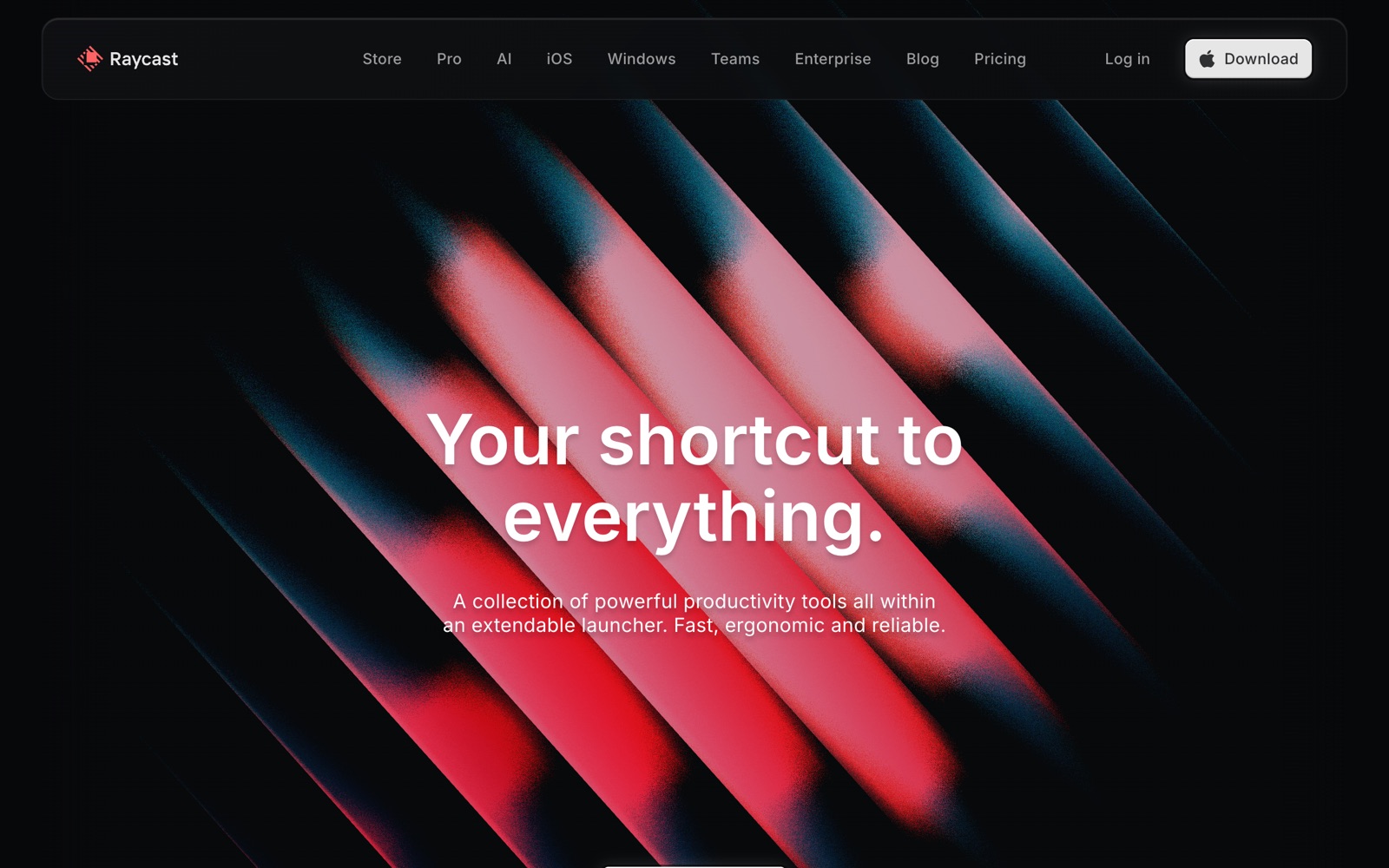
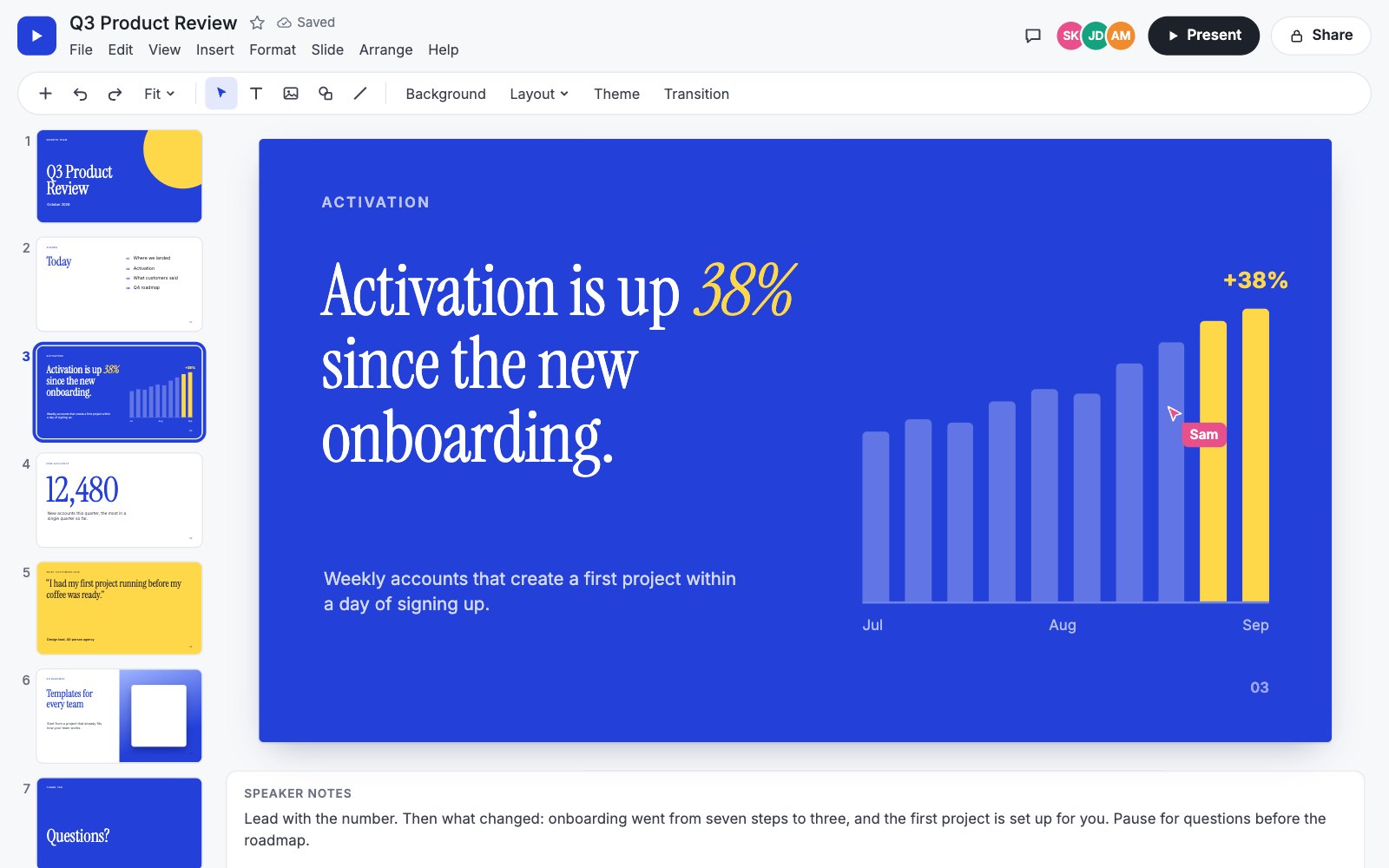
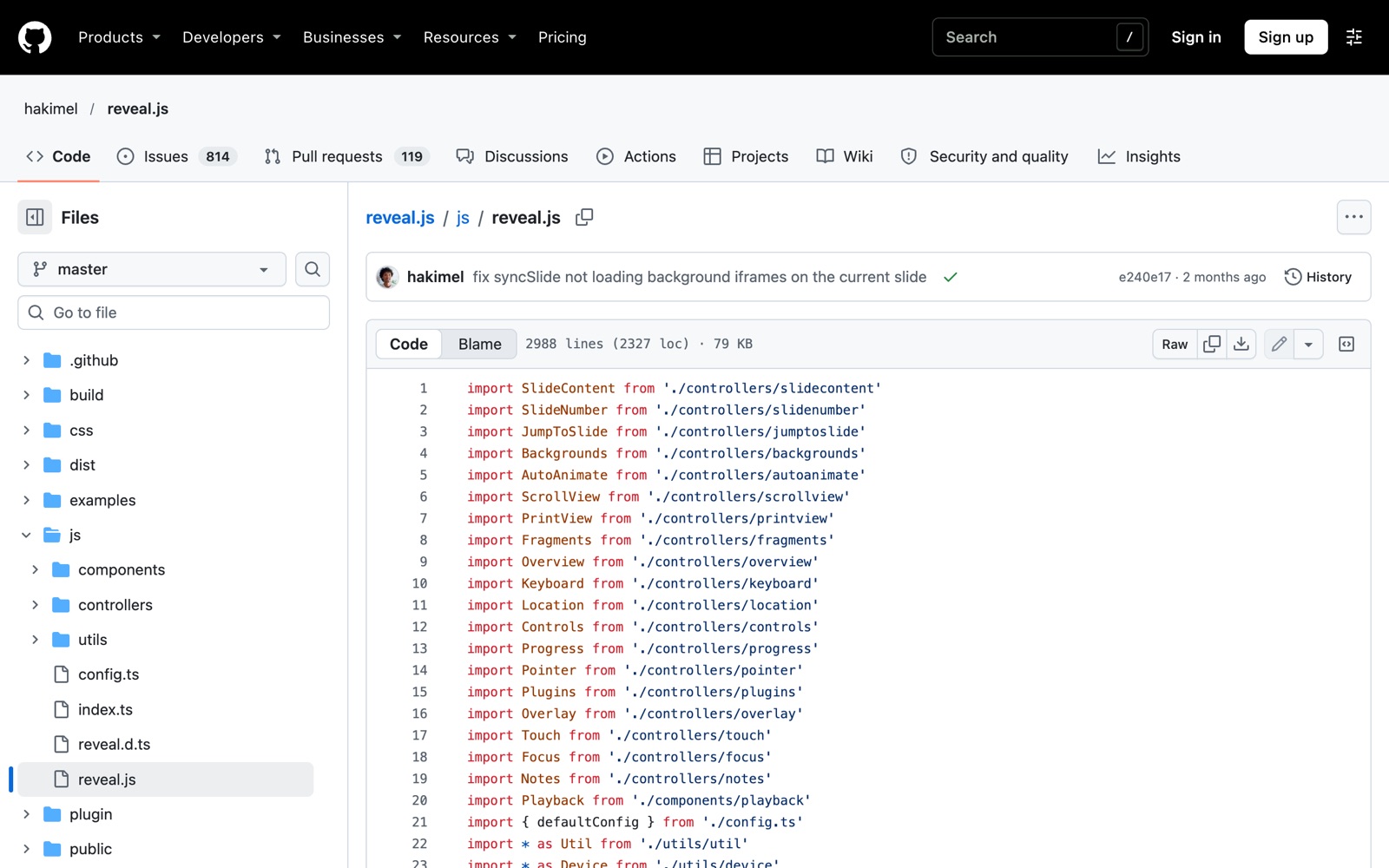
Same site.
Two windows.
Your browser
Every tab title, extension badge and bookmark goes out on the call with the page.
Stage
The same page, edge to edge, with the tabs out of sight until you reach for them.
A normal browser spends about 100 px on tabs, the address bar and bookmarks. In a 720p share, that's a seventh of every frame. Stage gives it back to the page.
Any site.
Edge to edge.
Run of show.
-
Before the call
Open your demo tabs from the terminal
stage --size 1280x720 \
  app.example.com docs.example.com
Each address becomes a tab.
--sizefixes the window at 16:9, so nothing reflows when you start sharing. -
Going live
Share only the Stage window
In Zoom, Meet or Teams, pick the Stage window instead of your whole screen. The audience gets the page and nothing around it.
-
During the demo
Reach up when you need another tab
Push the pointer against the top edge and the tabs slide in. Or stay on the keyboard: ⌘1–⌘9 switch tabs and ⌘L opens a page.
Small on purpose.
Hidden tabs
No toolbar, address bar or bookmarks. The tab capsule slides over the page from the top edge, and ⇧⌘B pins it open.
Extensions
Add the ones you use from the Chrome Web Store: open the Chrome Web Store from the Extensions menu, go to the extension's page, then choose Extensions → Add Extension from This Page. Their icons sit in the tab bar.
Terminal start
stage <url> opens the page and hands your prompt back. Run it again and the page joins the open window. No app bundle to sign.
Share sizes
Window presets at 1280×720, 1440×900, 1600×900 and 1920×1080. Zoom with ⌘= and ⌘- so the back row can read.
Escape hatch
⇧⌘O opens the current page in Google Chrome. Zoom and Slack links open in their own apps.
Hands on the keys.
One command.
Zero installation. npx runs Stage straight from npm: nothing to download from a website, drag into Applications or approve in System Settings.
Run it with npx
The first run downloads Stage and its Chromium runtime, about 120 MB.
npx stage-browser https://andrewckor.comKeep the stage command
One global install, then stage <url> from any terminal.
npm i -g stage-browserBuild from source
Then npm install and npm start.
git clone https://github.com/andrewckor/stage-browser Needs macOS and Node 22 or later.
Before you go live.
Do I have to install anything?
No. npx stage-browser runs Stage straight from npm, so there’s no app to download, drag into Applications or sign. You need macOS and Node 22 or later. The first run downloads Stage’s Chromium runtime once (about 120 MB) and checks it against a pinned SHA-256, so later launches start right away.
Is it open source?
Yes. Stage is MIT-licensed, and the code is on GitHub at github.com/andrewckor/stage-browser. Issues and pull requests are welcome.
Do Chrome extensions work?
Most do. Stage starts with none installed. Open the Chrome Web Store from the Extensions menu, go to the extension's page, then choose Extensions → Add Extension from This Page. Stage shows what it can access before adding it, checks the package against Google's signature like Chrome does, and updates it automatically. The Web Store's own Add to Chrome button doesn't work in Stage. Pop-ups open from the tab bar. Stage supports most Chrome extension APIs but not every one, so if an extension misbehaves, ⇧⌘O opens the page in Google Chrome.
Is it signed or notarized?
It doesn't need to be. On first launch, Stage copies Electron's Chromium app on your own Mac, names it Stage, and gives it a local signature, the same kind Electron itself ships with. No Apple developer account is involved.
Why does macOS ask about “Chromium Safe Storage”?
That Keychain key decrypts your saved logins. macOS asks once after you install or update Stage. Choose Always Allow, or sites will treat you as signed out.
Where are my logins and tabs kept?
In ~/Library/Application Support/Stage. npx, a global install and a clone all share it, so you sign in once. Stage reopens your last tabs when it starts.
Windows or Linux?
Not yet. Stage is macOS only.